Choose Your AI Model
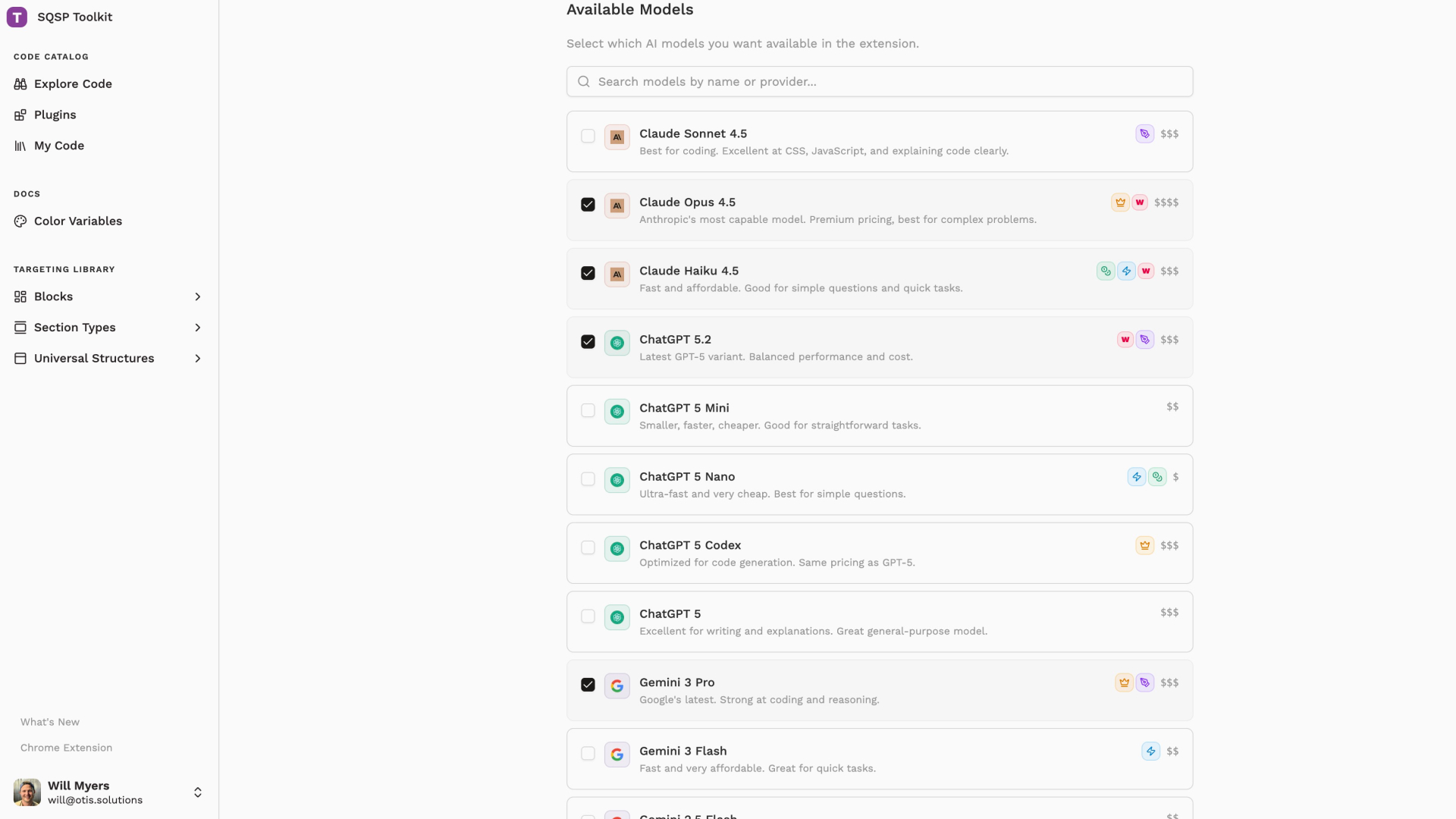
Pick from multiple AI models with a new model selector in the extension and on the website.
You're no longer locked into a single AI. A new model picker lets you switch between providers and find the one that works best for your task.
Pick Your Model
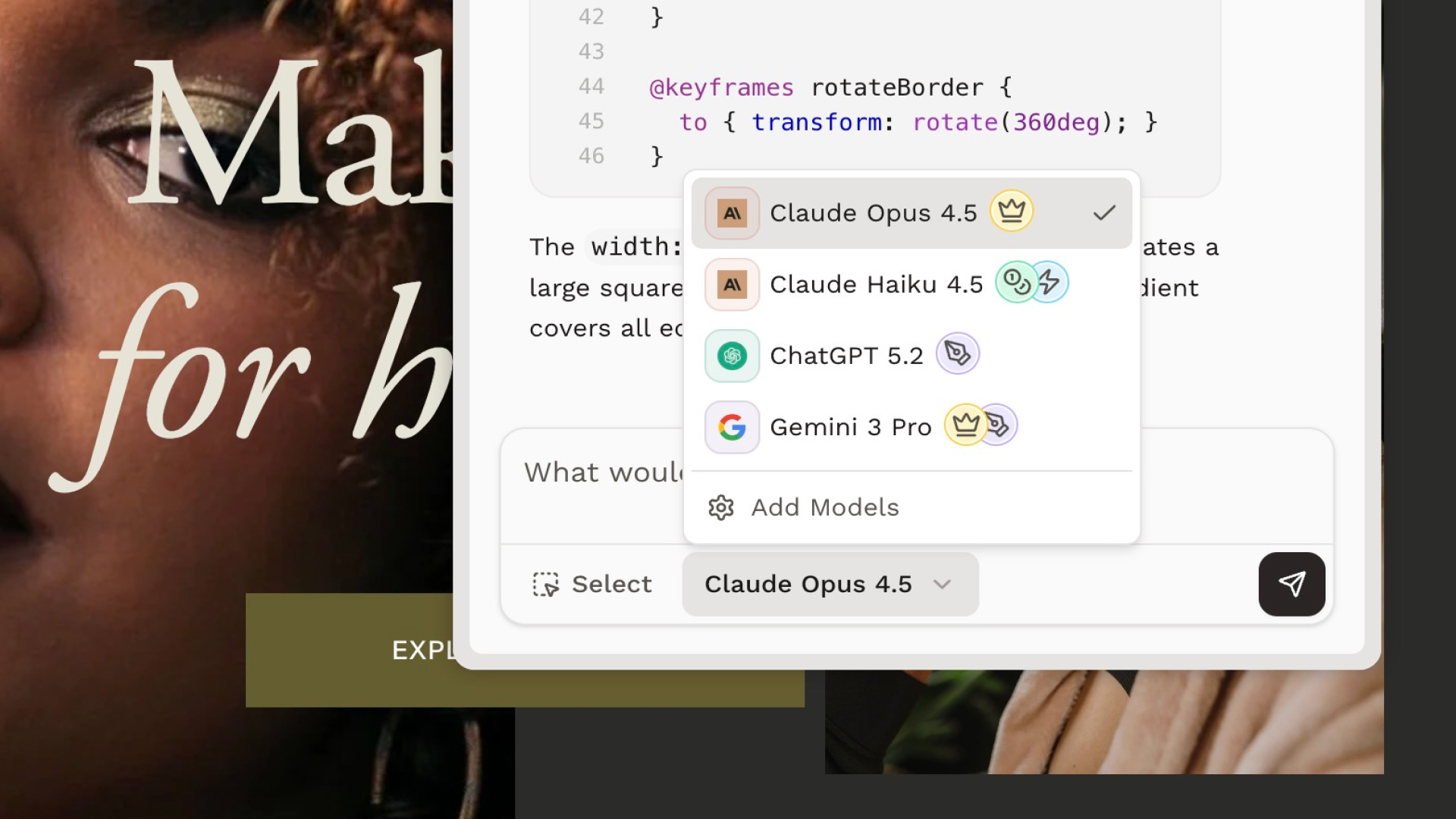
The extension now shows a dropdown next to the chat input where you can choose from several AI models. Each one has its own strengths — some excel at coding, others are faster or more budget-friendly.
Available Models
Here's what you can choose from:
Anthropic (Claude)
- Claude Sonnet 4.5 — excellent at CSS and JavaScript, great all-rounder
- Claude Opus 4.5 — most capable model for complex problems
- Claude Haiku 4.5 — fast and affordable for quick tasks
OpenAI (ChatGPT)
- ChatGPT 5.2 — latest variant, balanced performance and cost
- ChatGPT 5 — great for writing and detailed explanations
- ChatGPT 5 Codex — optimized specifically for code generation
- ChatGPT 5 Mini — smaller and faster for straightforward tasks
- ChatGPT 5 Nano — ultra-fast and very cheap for simple questions
Google (Gemini)
- Gemini 3 Pro — strong at both coding and reasoning
- Gemini 3 Flash — fast and very affordable
- Gemini 2.5 Flash — huge context window with good price/performance
- Gemini 2.5 Flash Lite — cheapest Gemini option
xAI (Grok)
- Grok 4.1 Fast — 2 million token context, solid at coding and writing
- Grok 4 Fast Reasoning — latest Grok with reasoning capabilities
- Grok Code Fast — very fast and cheap for development
DeepSeek
- DeepSeek V3.2 — great value for coding tasks
More models are available in your account settings.
Model Badges
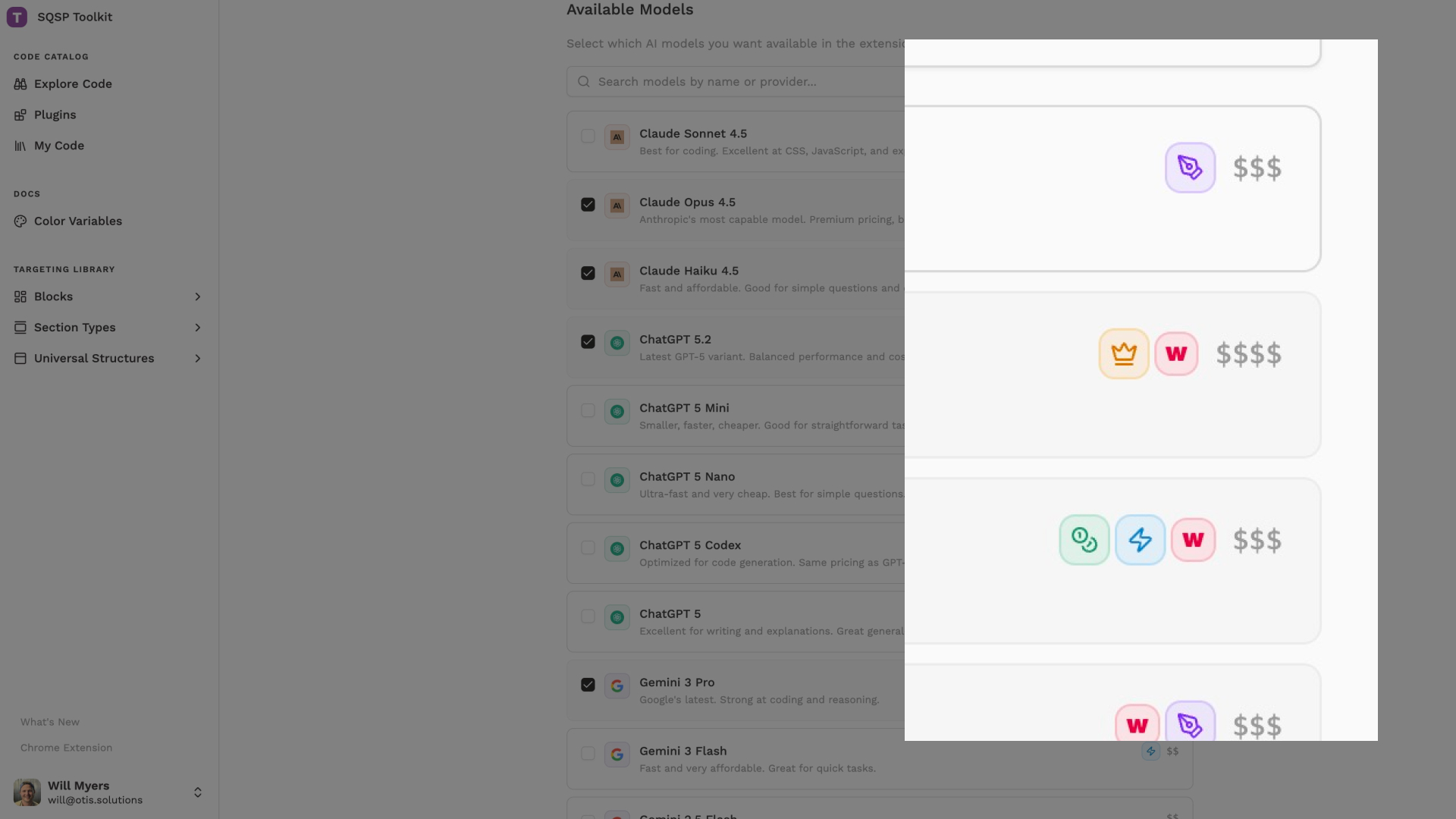
Each model can have badges that highlight its strengths at a glance:
- Crown icon — great for coding
- Pen icon — great for writing
- Coins icon — budget-friendly option
- Zap icon — lightning fast responses
Hover over a badge in the dropdown to see what it means.
Smart Default Selection
Robo-Will remembers the last model you used and automatically selects it next time you open a chat. If you switch to Claude for a coding task, it'll still be there when you come back. You can always change it mid-conversation if you want a different perspective.
Customize on the Website
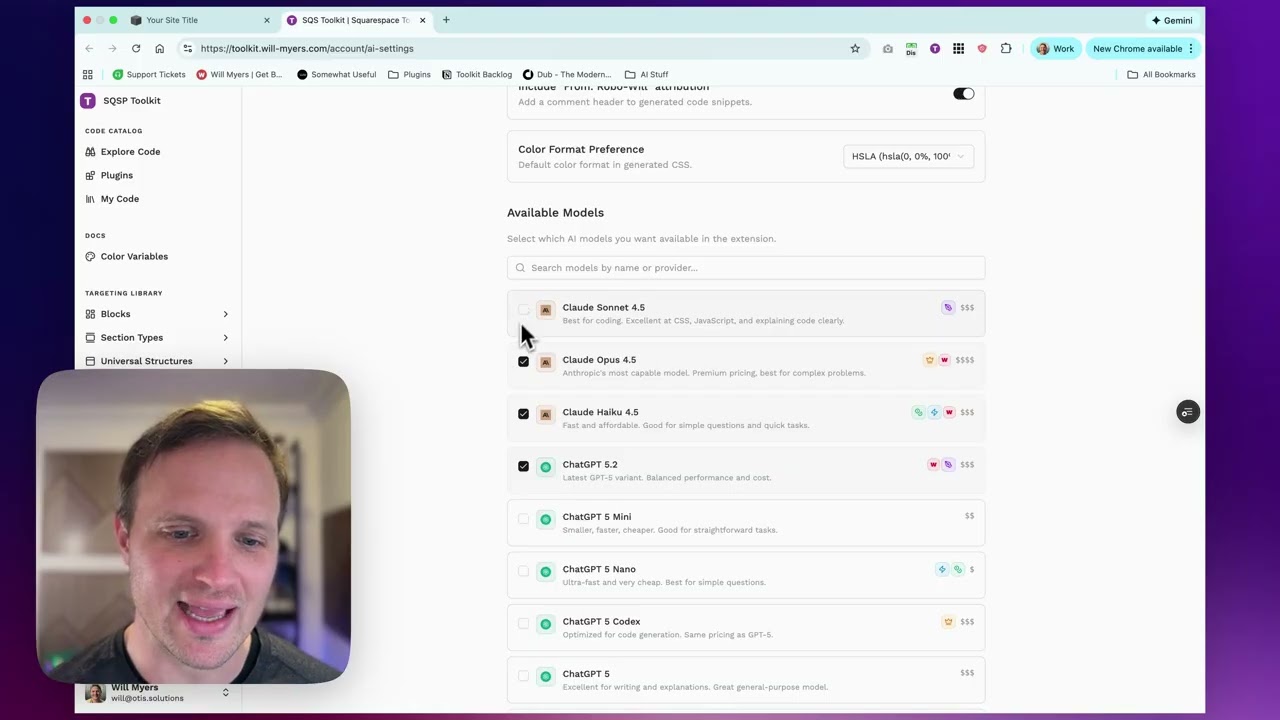
Head to Account → AI Settings to manage which models appear in your picker. You can enable or disable models based on your workflow, keeping the dropdown clean and focused on what you actually use.